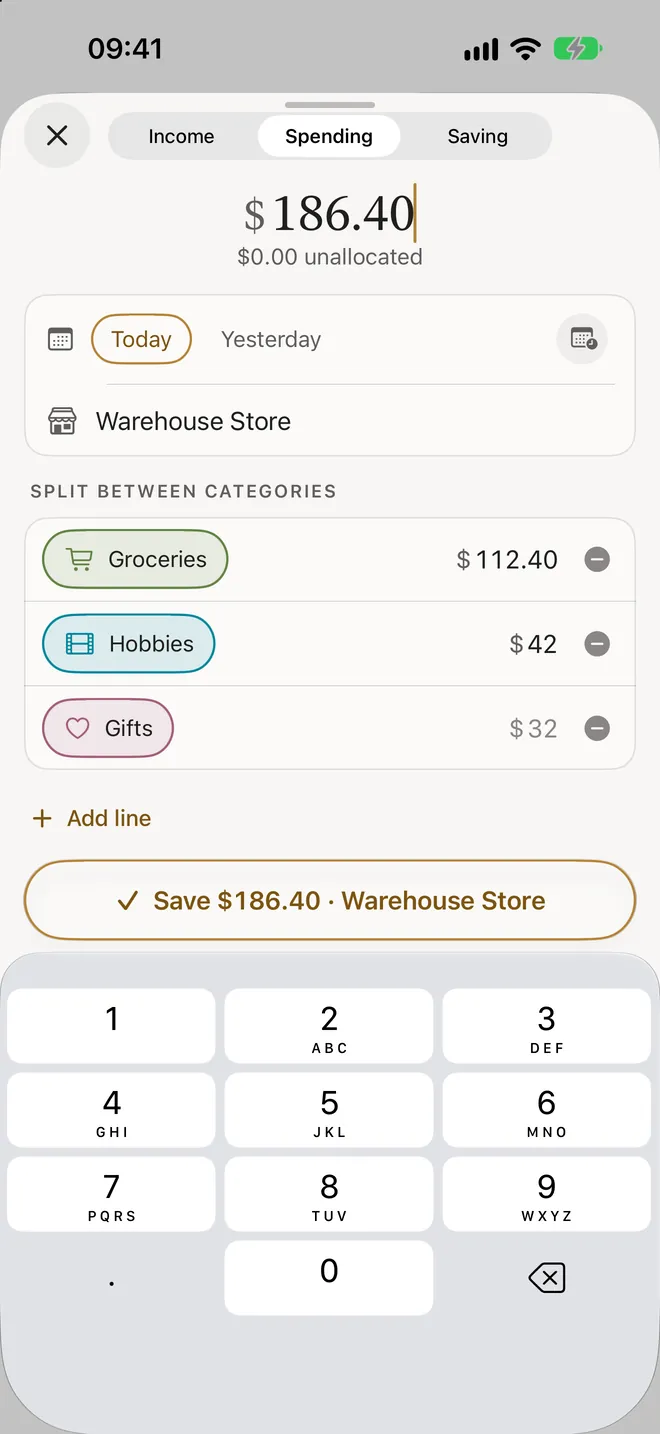
Split payments
A receipt that covers groceries, a gift and something for the house goes in as one payment over several categories. Type every amount but one and the last line takes the rest.


Plan all of your income before the month starts, log what you spend in a few taps, and see what’s left in each category before you buy.

iPhone, iOS 26 or later
One payment: no subscription, no account, no ads.
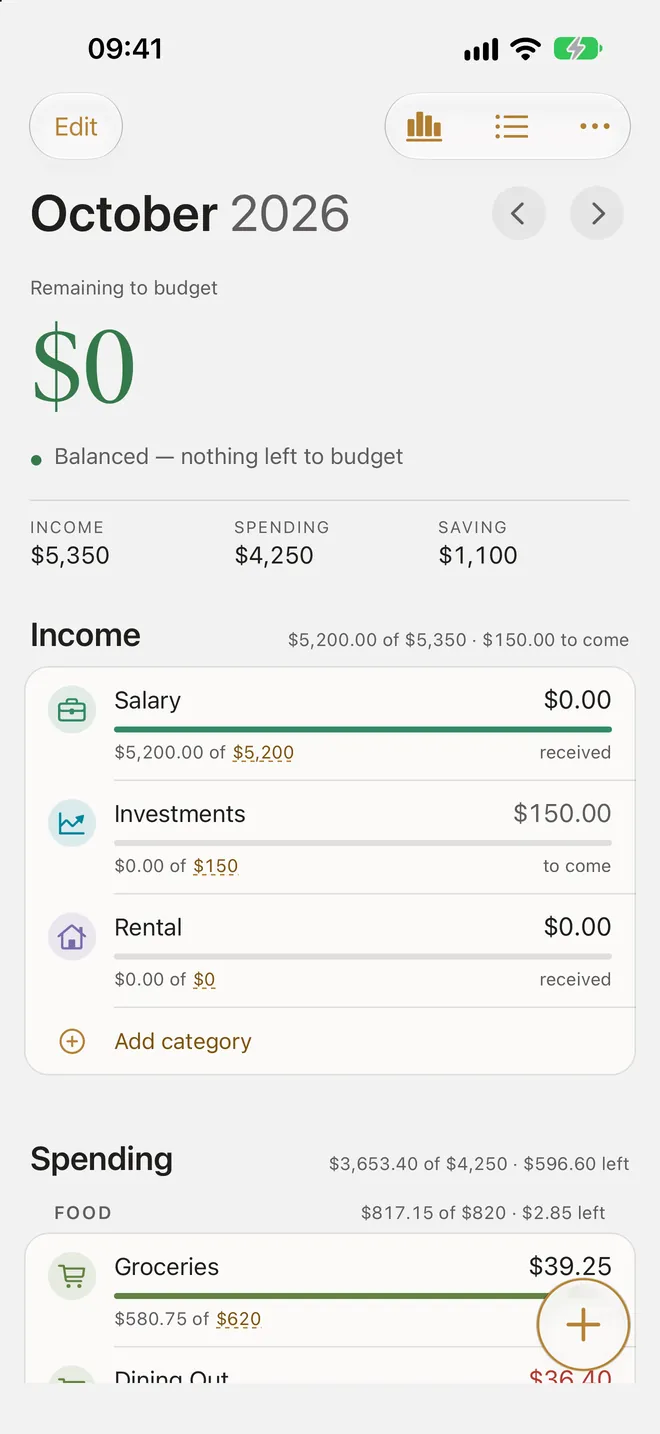
You enter what you earn and spend yourself: Micawber doesn’t connect to your bank. Here is a month in four steps, each with a short clip of the app.
Remaining to budget, the figure at the top of the month, is the income you haven’t assigned yet. Tap a category’s planned amount, type a new one and tap ✓. Once all of the income is assigned, the figure reads $0: balanced, nothing left to budget.
Tap +, type the amount, pick a category and save. Your most used categories come first, and the Save button reads the entry back to you, such as “Save $14.50 · Groceries”. Back on Budget, the category’s left figure drops by what you spent.
Tap a category to see its month: what’s left, what’s spent of what’s planned, its 12-month trend and average, and each entry by day. Look before you buy and you know whether the money is there. Going over shows in red; Micawber never stops you.
Move on to a month that isn’t planned yet and tap Start from last month: it copies last month’s categories and planned amounts, with nothing spent. Start empty gives you a blank month if you’d rather. Unspent money doesn’t roll over; only a fund carries its balance from month to month.
A receipt that covers groceries, a gift and something for the house goes in as one payment over several categories. Type every amount but one and the last line takes the rest.
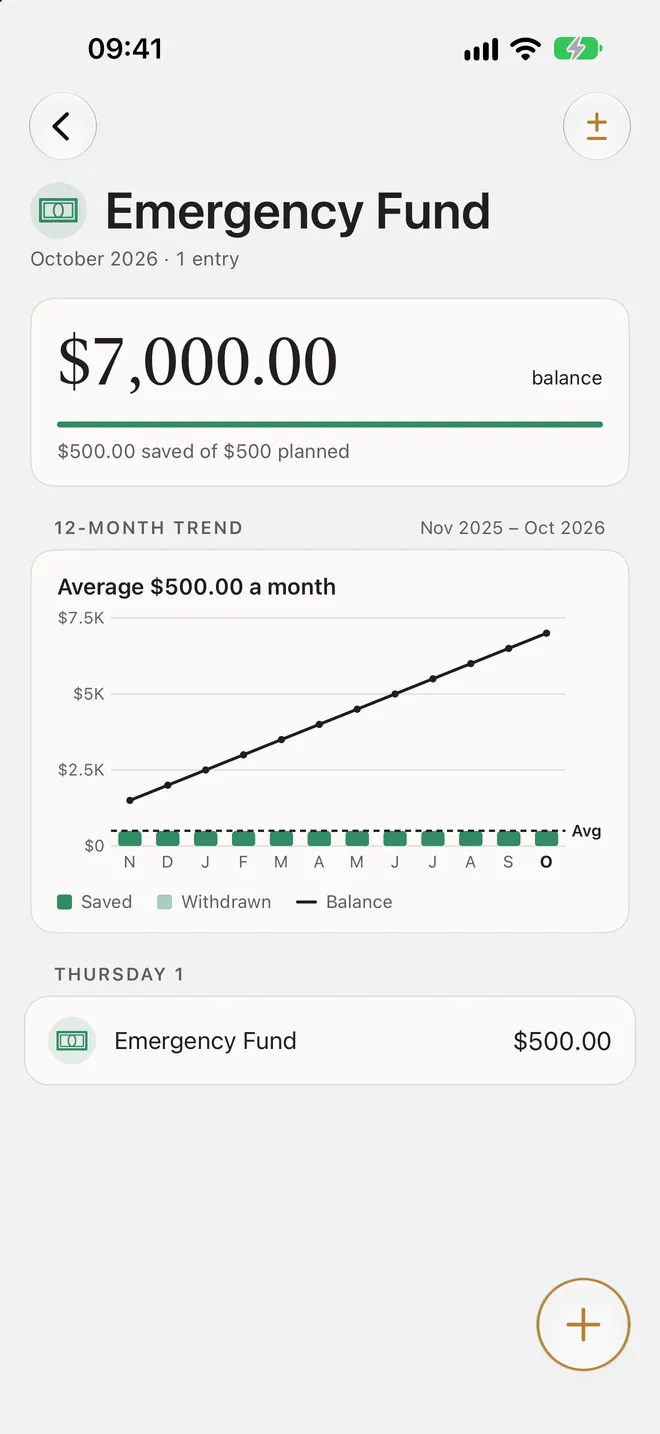
Turn a saving category into a fund to keep the balance of money set aside for something bigger: a car, a holiday, next year’s fees. Each month’s saving adds to it, and a withdrawal comes out of the fund, never the month’s budget.
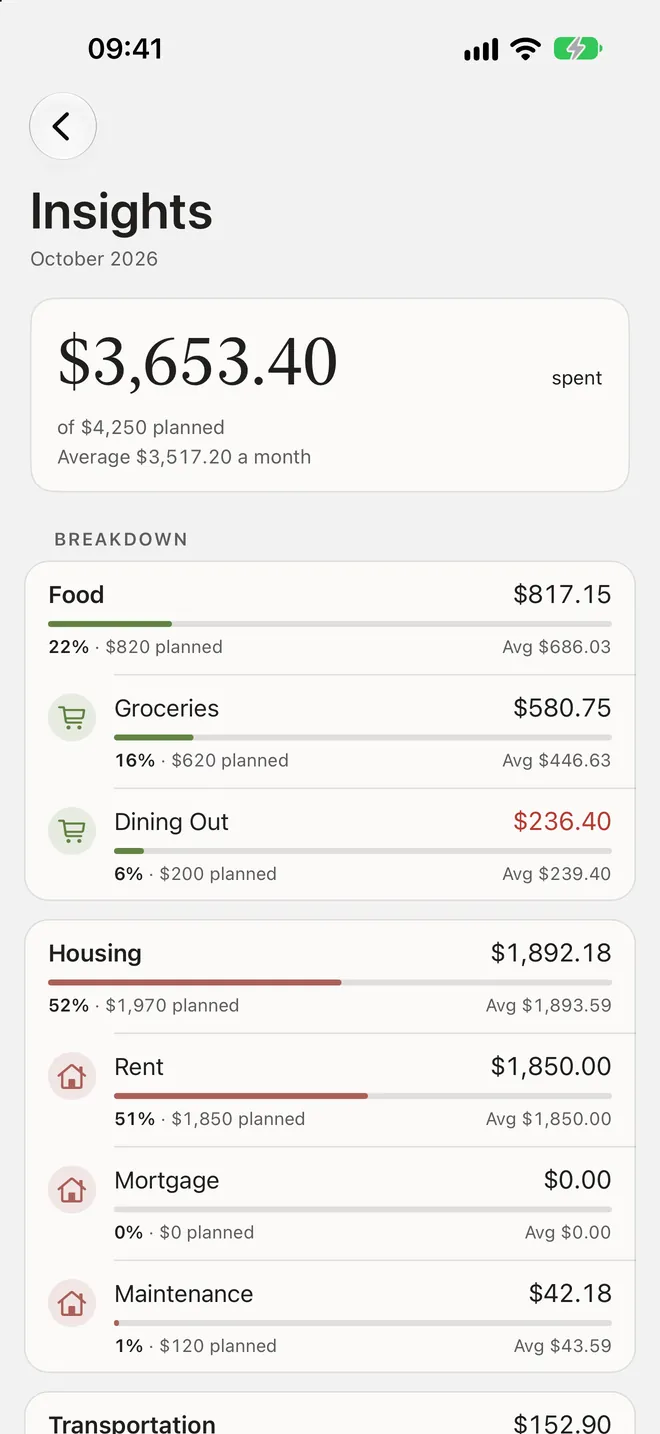
Where the month went, by group and category: each one’s share of spending, planned against actual and its average month, with a 12-month trend for every category.
There is no account and nothing to sign in to. Your budget lives on your iPhone, and Micawber collects nothing and makes no network requests of its own.
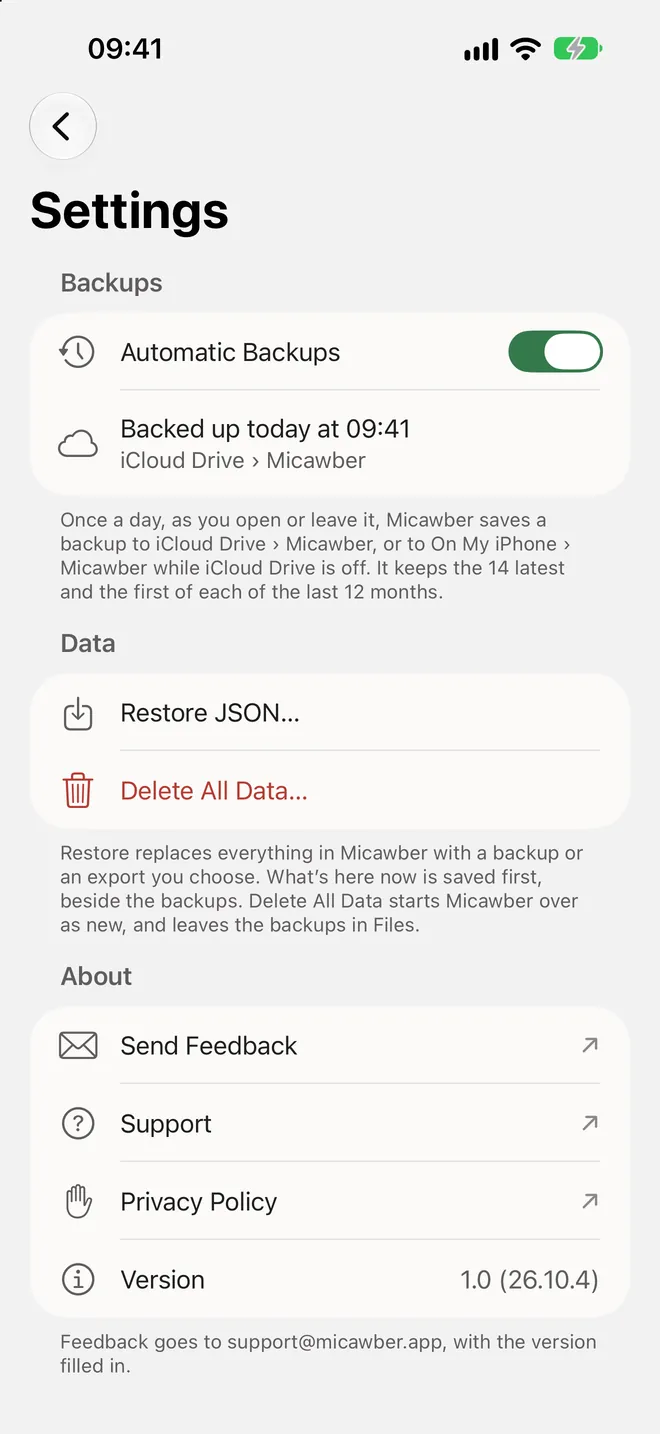
Once a day, as plain JSON files you can see in Files under iCloud Drive › Micawber. With iCloud Drive off, they stay on your iPhone.
Better to know before you buy than after.
Micawber is one payment on the App Store, which shows you the price in your own currency before you buy.
It can be. Before the month starts, you plan all of your income as spending or saving until nothing is left to budget, then log what you spend against that plan. Micawber starts you with a set of common categories, so your first plan is mostly a matter of filling in amounts.
No. Micawber imports nothing from other apps. You start from its default categories, rename, add or archive them to match yours, and plan this month by hand.
Add it when you remember, with the date it happened: quick-add offers Today, Yesterday and a calendar for any other day. Each entry counts in the month of its date.
No. A budget lives on one iPhone and doesn’t sync with any other device, so two people can’t share it.
With iCloud Drive on, Micawber backs up once a day to your own iCloud Drive. Install Micawber on the new iPhone, signed in to the same Apple Account, and restore the newest backup: Support has the steps. Backups kept only on your iPhone are lost with it.
Your backups stay in your own iCloud Drive until you delete them, even after you delete the app. They’re plain JSON files, in the Files app under iCloud Drive › Micawber. Deleting Micawber removes everything it keeps on your iPhone, including On My iPhone › Micawber.
One payment for everything it does on your iPhone, and a budget that stays yours.
iPhone, iOS 26 or later
“Annual income twenty pounds, annual expenditure nineteen nineteen and six, result happiness.”